The Sims on MacOS (Apple Silicon)
The Sims on MacOS (Apple Silicon)
This is a guide to install The Sims on MacOS with M-Series processors.
Since this involves copyrighted software and the use of certain workarounds to get it running, I do not distribute or share any of the files, only the ones that are available online for free. The information below explains what you need. Please ensure you have all the required software and the corresponding activation codes before proceeding.
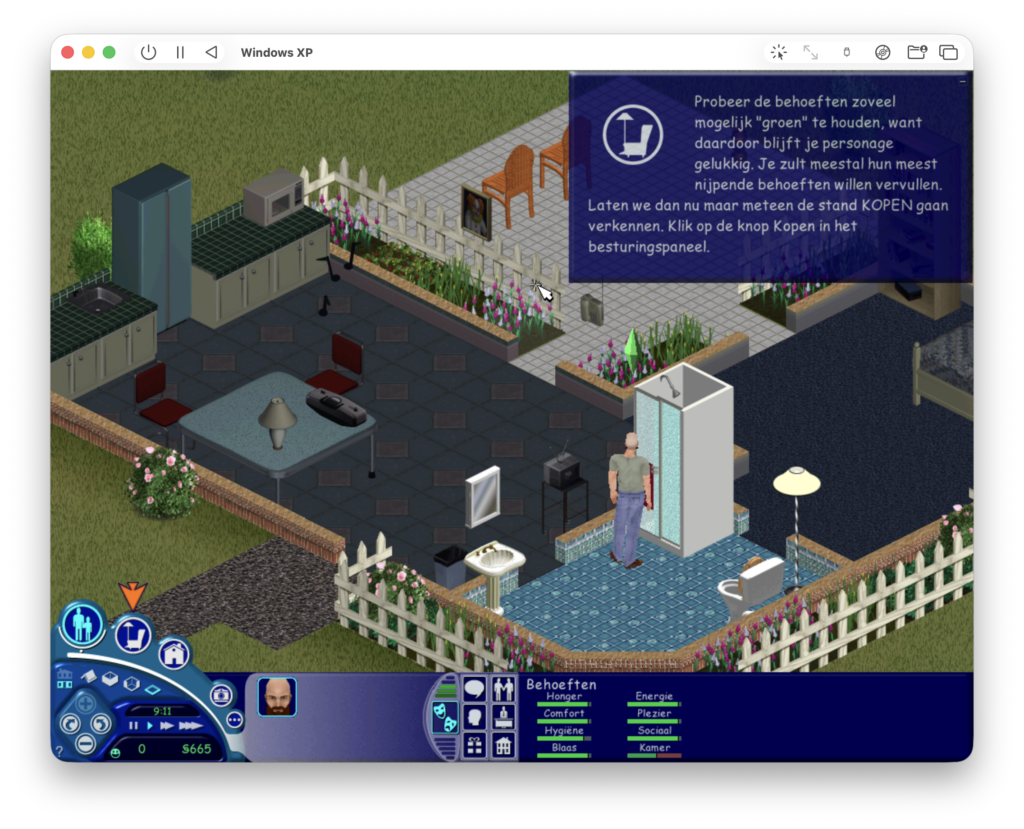
1. Create The-Sims-CD
- Extract The-Sims-CD.zip
- Put your installation files of The Sims in a folder within the The-Sims-CD folder
- Windows XP cannot be activated the normal way, so make sure you download an activator and put it in a folder within this folder as well
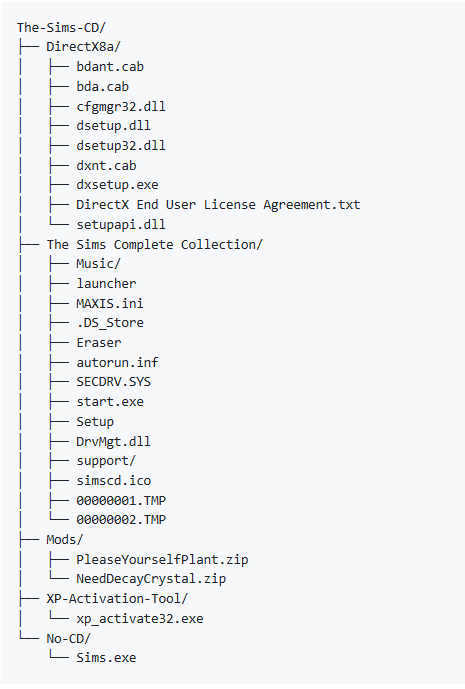
Your folder should now look something like this
- Open Disk Utility
- Select file > New Image > Create from folder
- Select the The-Sims-CD Folder
- Select DVD Master as structure
- After the ISO is made, open terminal and go to the folder with the The-Sims-CD.dvdr.cdr file
- Give the following command: hdiutil makehybrid -iso -joliet -o The-Sims-CD.iso The-Sims-CD.dvdr.cdr
2. Prepare the VM
- Download the latest UTM version from their website
- Download the Windows XP template from the UTM gallery
- Open the settings of the VM
- Under system give the VM 2 CPUs
- Give the VM 4GB of memory
- Select VGA as GPU and give it 256GB memory
- Turn off Auto Resolution under Display
3. Install Windows XP
- Start the VM
- Mount Windows XP Home with SP3
- follow the installation steps and finish the installation
- Shutdown Windows XP and open the settings
- Remove the Network/LAN settings after the installation
4. Settings and tools
- Start the VM again
- Install the Guest Tools from the CD menu on top of your VM and wait for it to complete the installation
- Go to Display Properties and set the resolution to 1024×768 and check if 32bit color is selected
- On the Display properties go to Settings and click advanced
- Go to troubleshoot and set hardware acceleration to None
- Right click on My Computer and select Properties, then Advanced and Performance settings.
- Select Adjust for best performance
- Mount The-Sims-CD.iso in Windows XP
- Open the CD and open Windows Activation Tool
- Click Get ID from System, and if the ID is generated, click Activate!
- Install DirectX8a from the folder
5. The Sims Complete Collection
- Install The Sims Complete Collection with Start.exe
- After installation, copy the No-CD Patch to the Program files/maxis/ folder
- Make sure to own a copy of the game and only use the No-CD Patch to get it work on your system
- Place the mods in the downloads folder from Program files/maxis/ folder
- Unzip the mods in the folder (cannot be done on the CD)
- You can use the mods by placing them in your house in the build mode, and let your sim interact with it. It makes playing this game much easier!
- Start the game with the 1024×768 option
- The game won’t start or give you a black screen with the wrong resolution set in Windows
- If you want to play in full-screen, first go to Full screen, then check the resolution is still 1024×768 and then start the game
Start the game and enjoy playing 😀!
Support my work?
If you like this guide and want to support my work, you can use the link below to buy me a coffee. Every bit of support is appreciated and helps me continue creating new content.
